

How to Send Event Invitations with QR Codes
A practical, Australia-friendly guide to using QR codes on event invitations — for online RSVPs, paper invites, and faster check-in on the day.
Guide
How to Send Event Invitations with QR Codes
QR codes had a slow start in the 2010s, then mass-trained an entire continent during COVID, and now every café menu and shopping centre directory has one. Australians scan QR codes without thinking about it — which makes them a quietly powerful tool for event invitations.
A QR code on an invitation does one thing well: it turns "follow this link to RSVP" into a one-tap action. No typing. No "where did I save that email?". For digital invites it's a small convenience. For printed invitations, posters, and door check-in it's transformational.
This guide walks through how Australian event hosts and venues are using QR-coded invitations practically. We'll skip the gimmicks and focus on six things that genuinely help.
What QR codes actually solve for events
Three concrete pain points:
- Printed-to-digital RSVP friction — a guest holds a paper invite, opens a phone, types a URL, gives up. QR removes the typing.
- Door check-in delays — paper guest lists, name-matching, and "are you on the list?" conversations are slow at any event over 50 people. A QR scan is half a second per guest.
- Reaching guests who don't read email — older relatives, less-online guests, kids' party parents — many will respond to a printed card faster than an email link they have to dig out.
QR codes don't replace a good invite. They make a good invite act on what it asks for.
Step 1: Choose an RSVP platform that supports QR natively
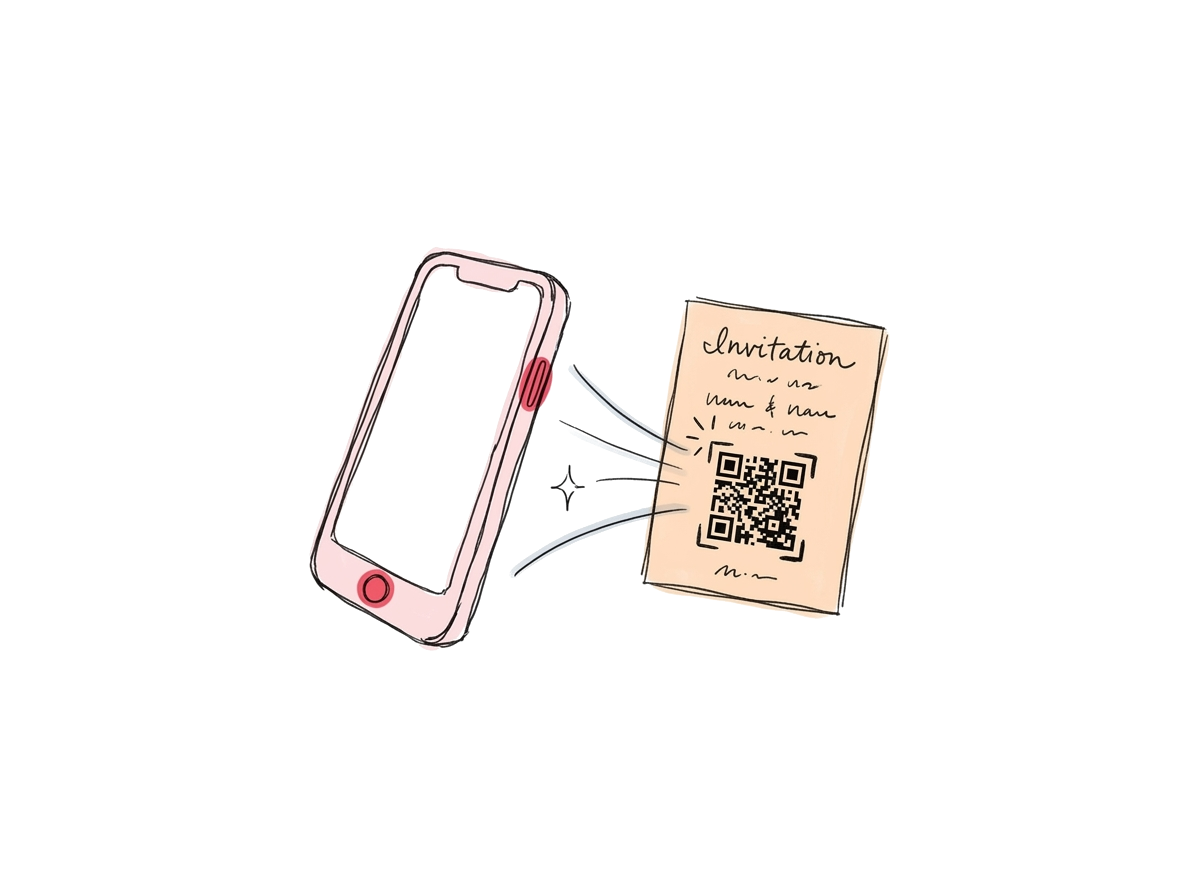 A phone scanning a QR code on a printed invite — the RSVP page opens instantly
You don't need a dedicated QR tool. Most modern RSVP platforms generate a QR code for every event automatically — the code resolves to the event's RSVP page.
What to look for:
- Per-event QR that resolves to your event's RSVP page (not a generic homepage)
- High-resolution download so print quality doesn't degrade
- Mobile-optimised destination page — if scanning leads to a desktop layout, guests bounce
- Optional per-guest QR for events where you want individual tracking or check-in
If you're using a generic URL shortener to make a QR, you'll lose the per-guest tracking benefit. Use the platform's native QR if it has one.
Step 2: Generate one QR per event, not one QR per channel
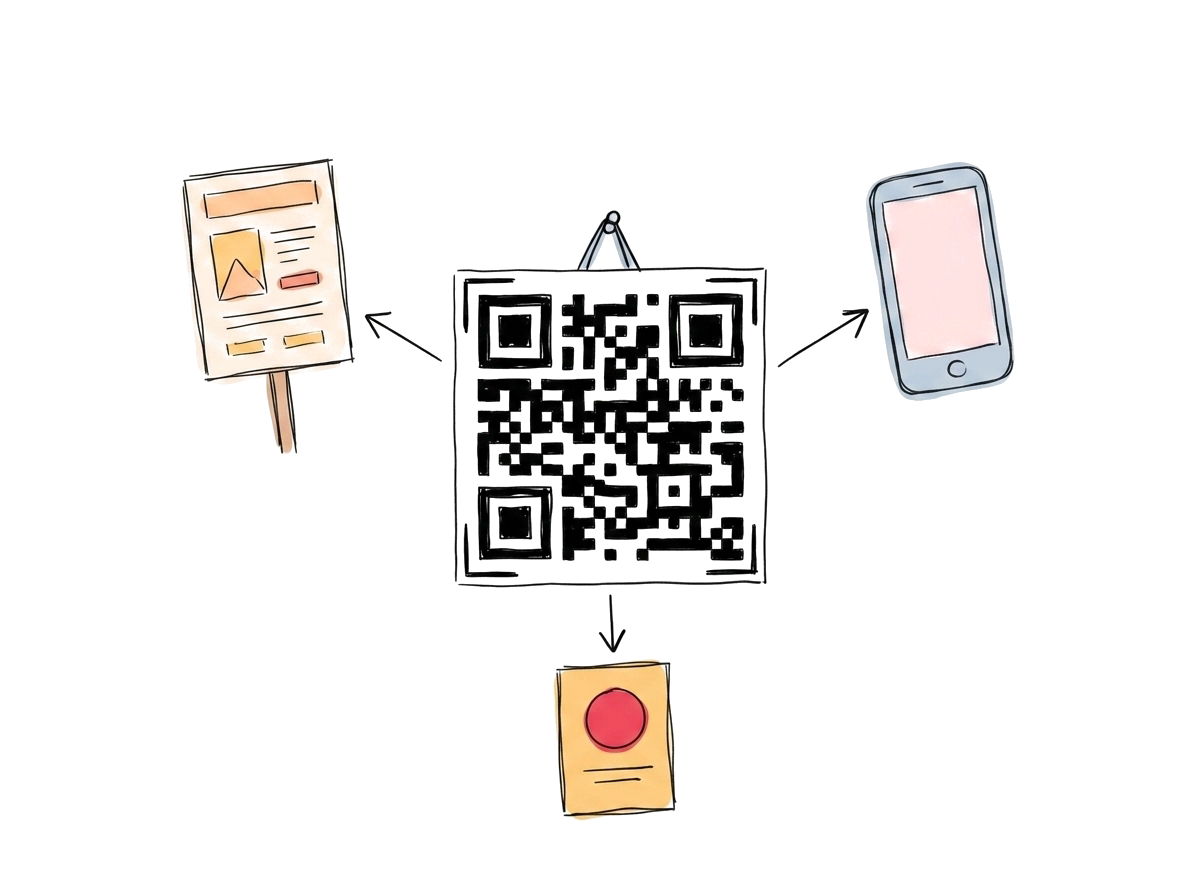 A single event QR that works on cards, posters, emails, and screens
A common mistake: generating different QR codes for the printed invite, the email, the social post, and the venue poster — usually to track which channel performed best.
For most events, this is over-engineering. The same single event QR works everywhere. If you want attribution, append a tiny ?utm_source= parameter to the URL behind a separate QR per channel — but only if you're going to actually look at the analytics. Most hosts don't, and the complexity isn't worth it.
One event = one QR. Print it everywhere. Done.
Step 3: Add the QR to your digital invites
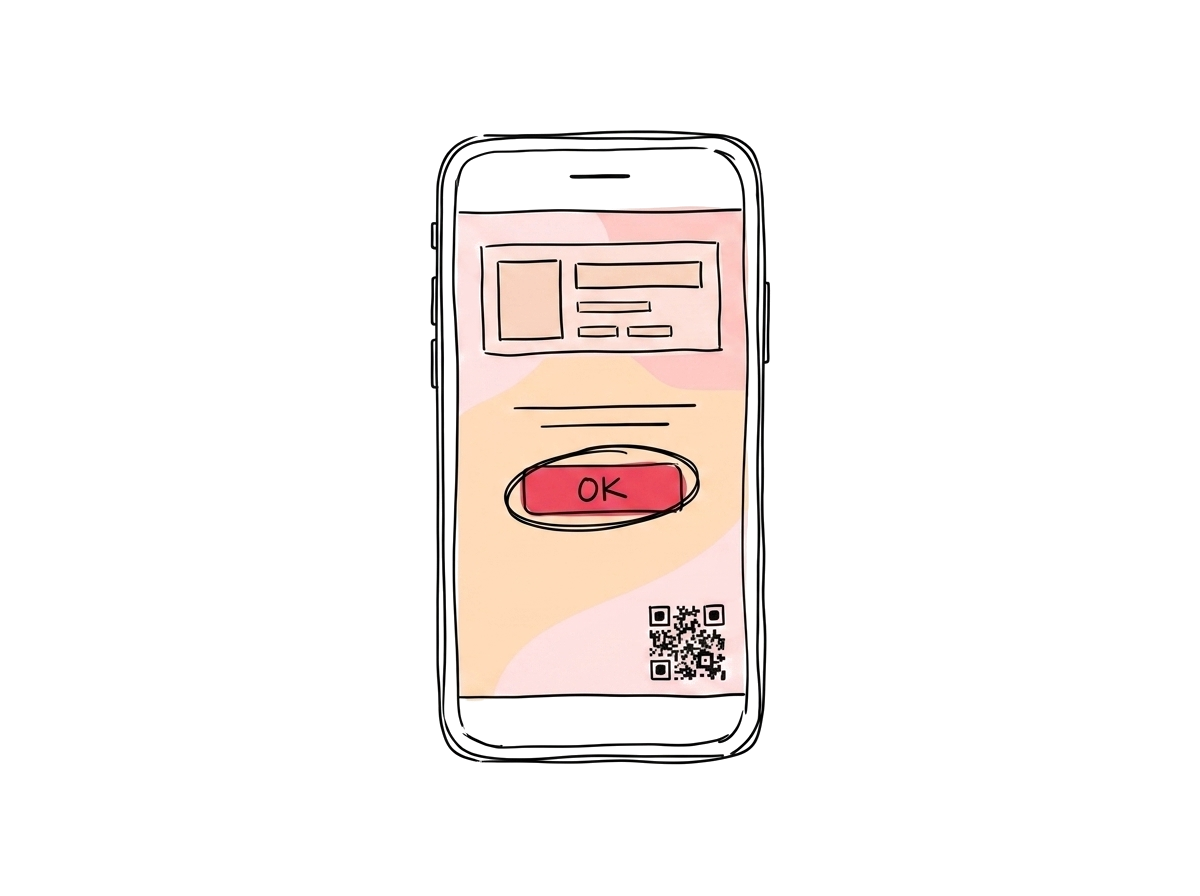 A digital invitation laid out on a phone with the QR neatly in the corner
For email and messaging invites the QR is a backup to the main RSVP button — guests on a desktop will use the link, guests reading on a phone might just scan a printed-out copy from across the room.
Practical layout for digital invites:
- Primary call-to-action: a tappable RSVP button at the top
- QR code: smaller, near the bottom, with the label "Scan to RSVP"
- Plain-text URL underneath the QR — for anyone scanning from a print-out where the link isn't clickable
The QR is decoration on a digital invite. It becomes essential the moment someone screenshots or prints it.
Step 4: Use QR on printed invitations, posters, and signage
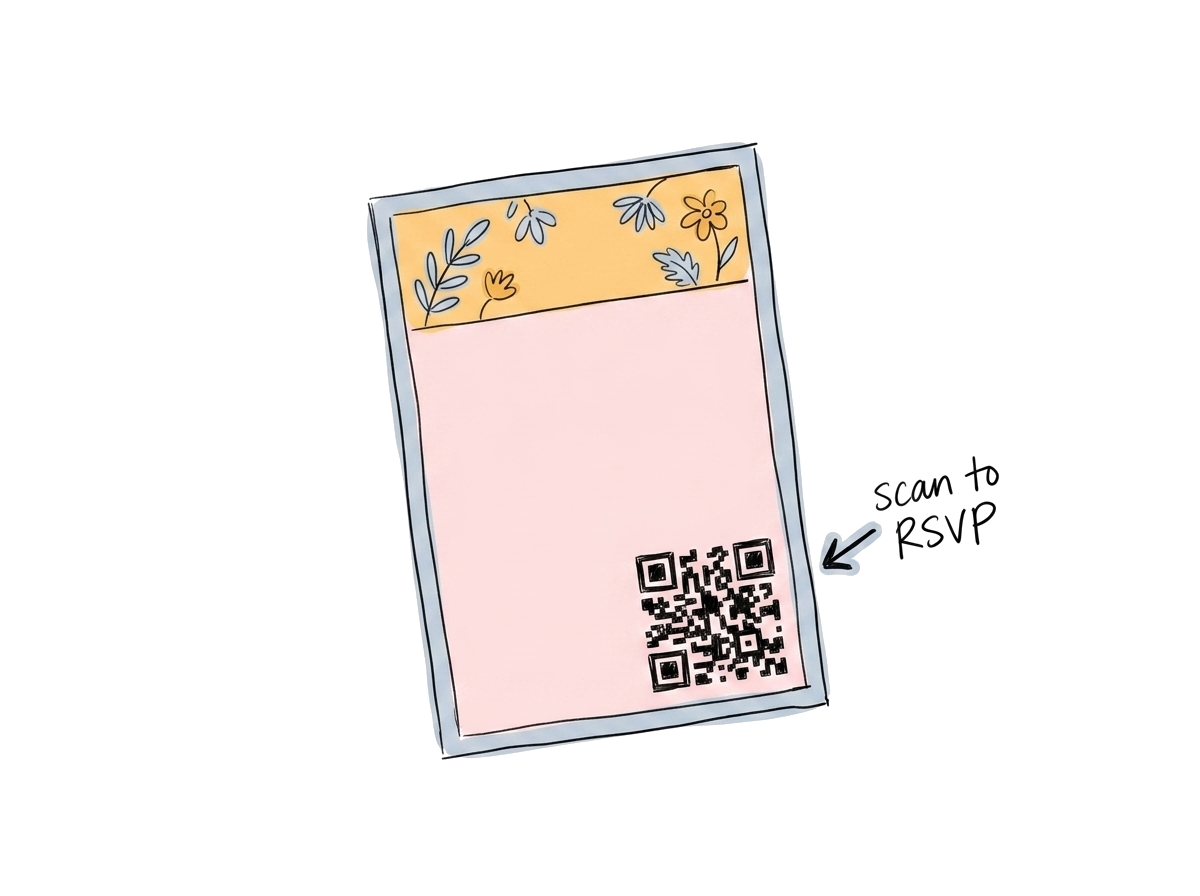 A printed paper invite with a clean black QR in the corner and a hand-lettered 'Scan to RSVP'
This is where QR earns its keep.
- Postcards and printed invites — older relatives who'd never type a URL will scan a QR with surprising speed once they've done it once
- Posters at the venue or community board — capture interest in the moment, drive an immediate RSVP
- Wedding stationery — save-the-date, formal invite, plus-one card all share the same event QR
- Order-of-events sheet on the table — guests at multi-event weekends use it to RSVP for the secondary events
Print quality tips:
- Minimum size: 2 × 2 cm. Smaller works but starts to fail in low light
- Solid black on white reads best. Coloured QRs are scannable but lower contrast = slower scan
- Always test-scan the printed copy from arm's length on three different phones before you order 100
Step 5: Use QR for door check-in on the day
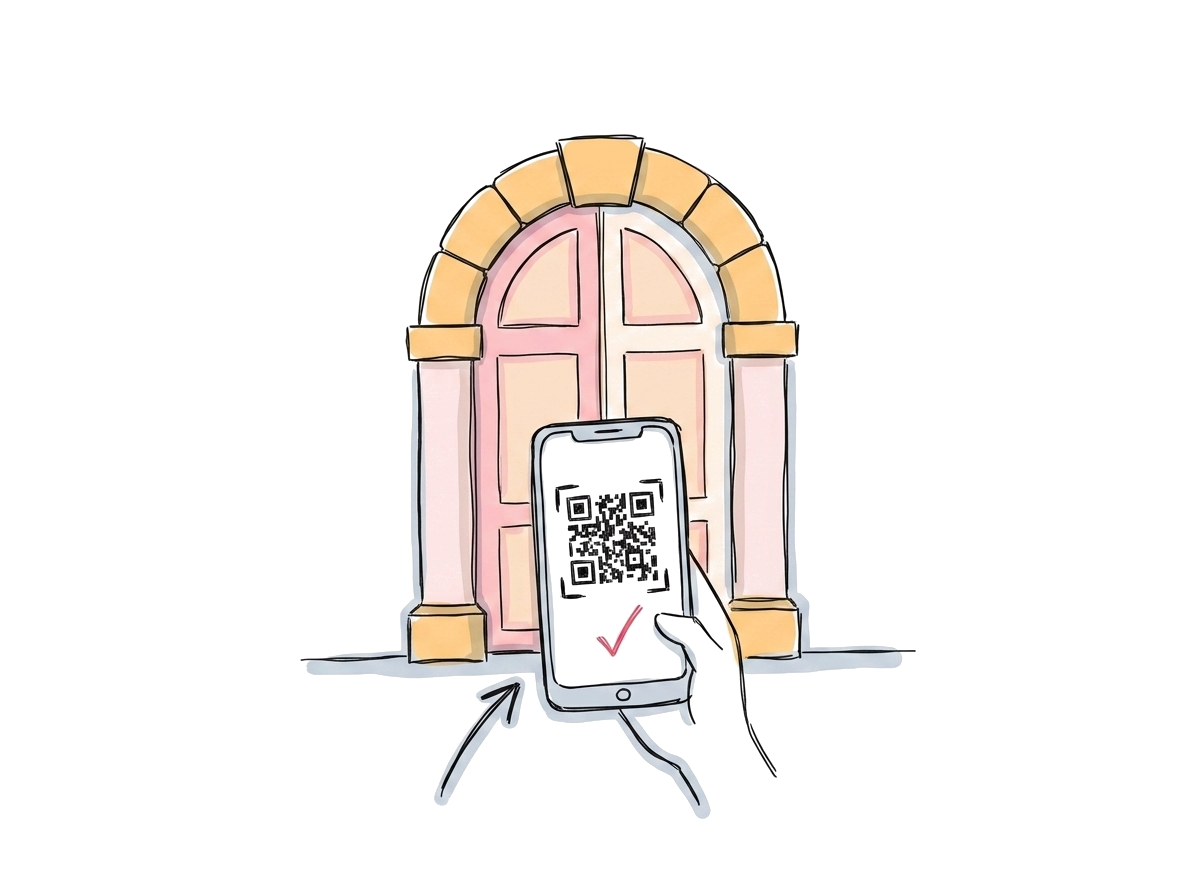 A doorway with a guest holding a phone — a tiny scan tick mark next to their invite
If your RSVP platform supports it, the same QR (or a per-guest variant) can be used for check-in at the door — the venue scans the guest's phone, the system marks them as arrived.
Why this matters for any event over 50 guests:
- Door queues clear faster (3-5x faster than paper lists)
- Live arrival count for the venue and the host
- Walk-ins and plus-ones are recorded as they're accepted, not reconstructed afterwards
- Photos, allergy notes, and special requirements pop up on the door scanner without flipping through paper
For weddings, corporate events, and ticketed venue functions, QR check-in is the single biggest experience improvement a host can deliver to guests waiting in line.
Step 6: Reuse the same QR for thank-yous and follow-ups
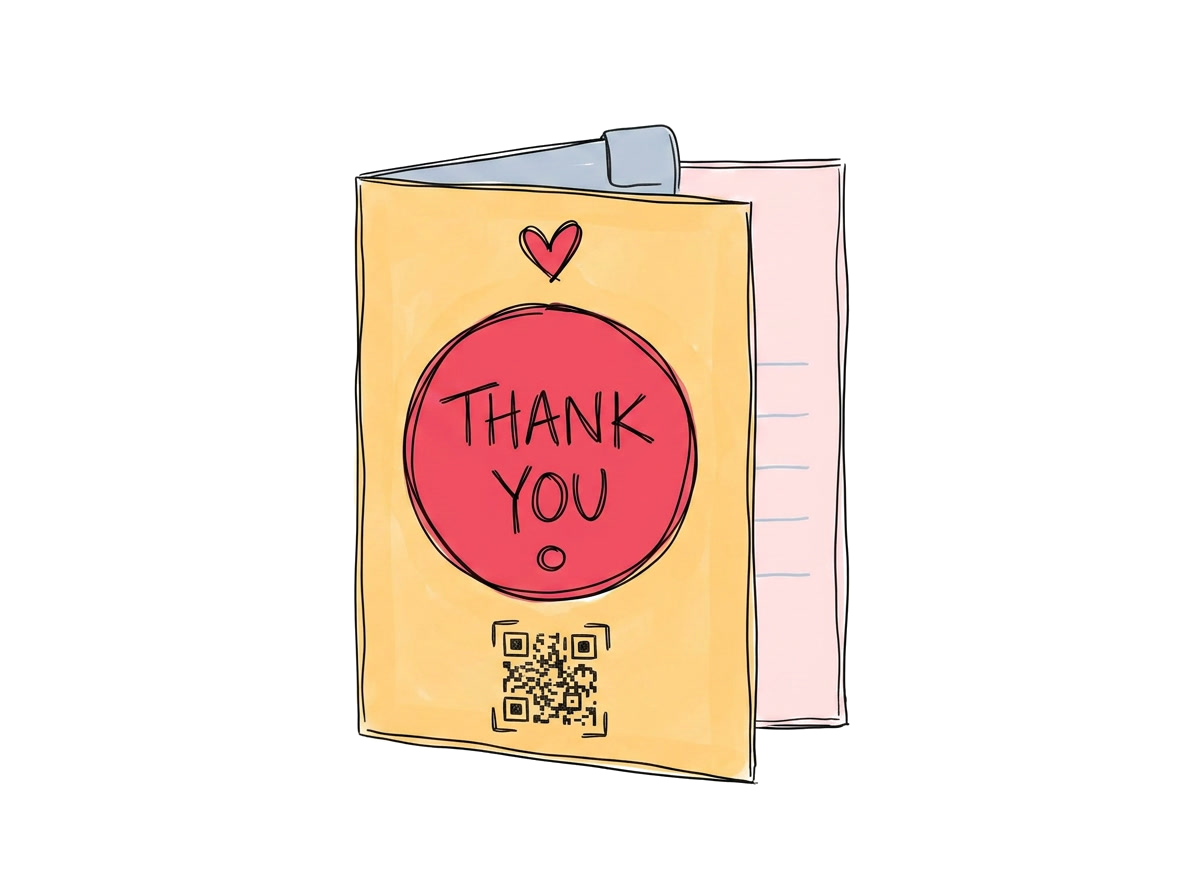 A thank-you card with the same event QR pointing at the post-event highlights page
After the event, the same event URL (and therefore the same QR) can route to a post-event landing page — photos, thank-you note, gift registry link, or a feedback form.
This costs nothing extra and keeps the channel alive for an extra week or two. Guests who scanned the QR pre-event already trust it. Reusing it for post-event content captures more engagement than a fresh email almost always will.
Australia-specific notes
- Privacy — Australian Privacy Principles require clear consent for any personal data collected via the RSVP form. Most RSVP platforms handle this with a tick-box on the form; just make sure yours does.
- NDIS and community events — many community organisations now require RSVP attendance records for grant acquittals. QR check-in gives you a clean, audit-friendly arrival log.
- Mobile coverage at regional venues — for events in rural NSW, Victoria, or Queensland, scan the venue's mobile coverage before relying on at-door QR check-in. A pre-event paper backup is wise.
- Older Australians — the post-COVID adoption of QR menus means even guests in their 70s and 80s scan QRs comfortably. Don't assume your invite list is too old for it.
Common mistakes
- QR pointing to a desktop-only page — mobile-broken RSVP forms tank conversion
- QR larger than the actual invite — it dominates the design and undermines the occasion
- No fallback link — always print the URL underneath the QR
- Never test-scanning the print proof — a tiny print-shop scaling error can turn a working QR into an unscannable one
- Generating a new QR every time the event details change — keep the underlying URL stable; the QR doesn't need to change
The tools side
A good event RSVP platform should give you the QR for free, without you ever needing to download or generate it separately. Look for:
- Per-event QR available from the event dashboard
- High-res download (300+ DPI) for print
- Optional per-guest QR for check-in
- Mobile-optimised landing page
I am Coming generates a QR for every event automatically. The same code that drove pre-event RSVPs handles door check-in on the day and resolves to a post-event page after — one QR, one workflow.
In summary
The honest, practical use of QR codes for event invitations:
- Pick an RSVP platform that generates per-event QRs natively
- One QR per event — print it everywhere
- On digital invites, the QR is a backup to the main button
- On printed invites and posters, the QR is the main RSVP path
- Use the same QR for door check-in
- Reuse it after the event for thank-yous and follow-ups
Nothing about QR codes is magic. They just remove a step. For events of any meaningful size — over 30 guests, or anything printed — that one step turns out to matter more than you'd expect.
Sending invites soon? Create an event with I am Coming and your per-event QR code is generated automatically — print-ready, mobile-optimised, and ready for door check-in.
Ready to stop chasing RSVPs?
Create beautiful invites, automate reminders, and track confirmations in real-time.
No credit card required